Registry Issues
Beginning with Windows 8 some games won't use IndirectSound
even if the dsound.dll is in the correct location.
To fix this the Windows registry must be changed.
(Some Windows updates also make it necessary to repeat these changes.)
Use caution when changing the registry!
Making invalid changes can cause a computer to not function correctly.
Recommended Changes
The changes described in this section only affect the current user
and are easier to undo if something goes wrong
because they don't affect what Windows has done during installation or updates.
Instead of following the instructions below to make these changes manually in the registry editor
you can use a file that I have made to do the same thing automatically, but use this at your own risk!
This is a text file and you can open it in a text editor to inspect what changes it will make
(and verify that it makes the same changes that are described on this page).
To use the automatic file:
- Download the file here
-
Rename the downloaded file so that its filename ends in
.reg
(I couldn't use the correct .reg extension on the file you download
because some browsers block these potentially dangerous files).
The filename doesn't matter except for how it ends
but if you just remove ".txt" from the end of the downloaded filename
then you will have dsound.reg which is a good choice.
(If you have Windows configured so that it hides file extensions
then this step may be confusing or difficult.
Try doing an internet search for "how to change file extensions if Windows hides them".
If you have successfully added the .reg file extension
the file will have a different icon in Windows File Explorer.)
-
Double-click the file with the
.reg extension in Windows File Explorer
and select yes when asked if you want to allow changes to be made on your computer
There are two locations where the relevant CLSID registry values are located.
If you decide to change a registry value for a specific CLSID
then it probably makes sense to change it in both of the following places:
- Computer\HKEY_CURRENT_USER\Software\Classes\CLSID
- Computer\HKEY_CURRENT_USER\Software\Classes\WOW6432Node\CLSID
There are two CLSIDs used to create DirectSound interfaces for playing sounds.
If a game uses a CLSID explicitly it will likely be one of these two:
- {47D4D946-62E8-11CF-93BC-444553540000}
- {3901CC3F-84B5-4FA4-BA35-AA8172B8A09B}
Do the following for each CLSID (in other words, you will do the following sequence of steps 4 times):
- Find if a key already exists for the CLSID (it likely won't)
- If the key doesn't already exist then you must create it
- It must be spelled exactly as listed above (including curly braces). I recommend copying/pasting from this page.
- The CLSID key needs a subkey named InprocServer32
- If the subkey doesn't already exist then you must create it
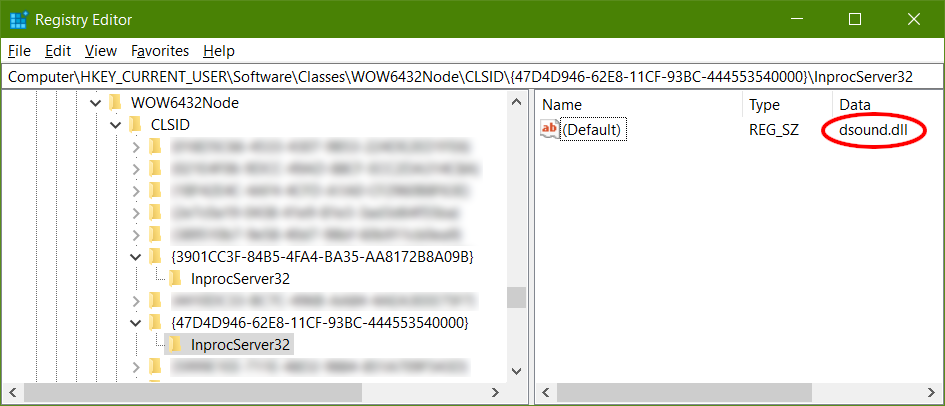
- Change the (Default) value of InprocServer32 to:
- This is an example of what correctly configured CLSID keys look like in the registry editor:
- (One way that games can use DirectSound is to ask Windows for an interface to it by specifying the CLSID.
In Windows 8 or later if a game does this Windows will always give an interface to the official Microsoft version of DirectSound.
By making these registry changes you are telling Windows to first look for
dsound.dll
in the same directory that the game is in before it looks for the official Microsoft version.)
Alternate Method
The changes described in this section are no longer recommended.
They affect every user
and change what Windows has done during installation or updates.
There are two locations where the relevant CLSID registry values are located.
If you decide to change a registry value for a specific CLSID
then it probably makes sense to change it in both of the following places:
- Computer\HKEY_LOCAL_MACHINE\Software\Classes\CLSID
- Computer\HKEY_LOCAL_MACHINE\Software\Classes\WOW6432Node\CLSID
There are two CLSIDs used to create DirectSound interfaces for playing sounds.
If a game uses a CLSID explicitly it will likely be one of these two:
- {47D4D946-62E8-11CF-93BC-444553540000} (DirectSound Object)
- {3901CC3F-84B5-4FA4-BA35-AA8172B8A09B} (DirectSound 8.0 Object)
For each CLSID that you decide to change:
- Find the InprocServer32 subkey
- Find the (Default) value
- If the existing data is something like
%SystemRoot%\System32\dsound.dll
and a game explicitly creates a DirectSound interface using this CLSID
then Windows will use the dsound.dll at that path instead of
the IndirectSound dsound.dll that you have put in the game's directory.
In order for Windows to use IndirectSound this registry value must be
just the filename with no path:
- There is a good chance that if you try to edit this value
Windows will show an error message and refuse to accept the change.
If this happens it is probably because your account doesn't have
the permission required to change the registry key.
If you search the internet you can discover how to change the key's permissions.
There are additional CLSIDs used to create other DirectSound interfaces.
IndirectSound does not currently implement these interfaces,
but they are listed here for completeness:
- {B0210780-89CD-11D0-AF08-00A0C925CD16} (DirectSoundCapture Object)
- {E4BCAC13-7F99-4908-9A8E-74E3BF24B6E1} (DirectSoundCapture 8.0 Object)
- {FEA4300C-7959-4147-B26A-2377B9E7A91D} (DirectSoundFullDuplex Object)
- {11AB3EC0-25EC-11D1-A4D8-00C04FC28ACA} (CLSID_DirectSoundPrivate)
- (This last one will likely not be listed in the registry)
🇺🇦 Slava Ukraini! 🇺🇦
Copyright © 2012-2026 John-Paul Ownby
indirectsound@gmail.com
Return Home